10 Essential OJS Plugins Every Journal Should Consider
The OJS plugins that matter most for a professional journal: DOIs and Crossref, ORCID, Google Scholar, statistics, preservation, static pages and editorial automation.
Open Journal Systems is deliberately modular: much of what makes a journal look and work professionally comes from plugins. Some are bundled with OJS and only need to be switched on; others come from the PKP Plugin Gallery or from independent developers.
Here are the ten plugins we recommend every journal review, grouped by what they do. You will find most of them under Settings > Website > Plugins, and more in the Plugin Gallery tab on the same page.
Discovery And Indexing
1. Google Scholar Indexing
Adds citation_ meta tags to every article page so Google Scholar can read the title, authors, date and PDF link. It is bundled with OJS and should always be enabled. Our guide to Google Scholar indexing for OJS explains how to check it is working.
2. Dublin Core Indexing
Adds a parallel set of Dublin Core (DC.) meta tags used by library systems and other indexers. Lightweight and worth enabling alongside the Scholar plugin.
3. Crossref (DOIs)
DOIs give each article a permanent identifier that never breaks, and many indexing services expect them. Since OJS 3.4, DOI management is part of the core (Settings > Distribution > DOIs), while the Crossref plugin handles registration and deposit with Crossref. You need a Crossref membership to deposit DOIs.
Authors And Trust
4. ORCID
ORCID iDs connect authors to their work unambiguously and let OJS push publication records to authors' ORCID profiles. In OJS 3.3 and 3.4 this is provided by the ORCID Profile plugin; in OJS 3.5 ORCID support is built into the application and configured from the journal settings.
5. Usage Statistics
OJS records article views and downloads in a COUNTER-compliant way. Make sure statistics are being collected, then decide what to show publicly — many themes, including our TechnoScholar theme, can display views and downloads on the homepage and article pages.
Preservation
6. PKP Preservation Network (PKP PN)
Free digital preservation for OJS journals that meet its requirements: your published content is archived in a distributed network, so it survives even if your server does not. Preservation is increasingly expected by indexers and libraries. Archiving options (PKP PN, LOCKSS, CLOCKSS) are found under Settings > Distribution > Archiving.
Website And Content
7. Static Pages
Lets editors create extra pages — "Indexing & Abstracting", "Publication Charges", "Archiving Policy" — directly from the dashboard, and link them from the navigation menu. Ideal for the policy pages that recognition bodies look for.
8. Custom Block Manager
Creates sidebar blocks with your own HTML: indexing logos, a "Submit Your Manuscript" button, an ISSN box or a visitor counter. Most themes display these blocks in a sidebar or footer.
9. Web Feeds
Publishes RSS and Atom feeds of the current issue, so readers and aggregators can follow new articles automatically. It is bundled with OJS and only needs to be enabled.
Editorial Productivity
10. Editorial Automation Plugins
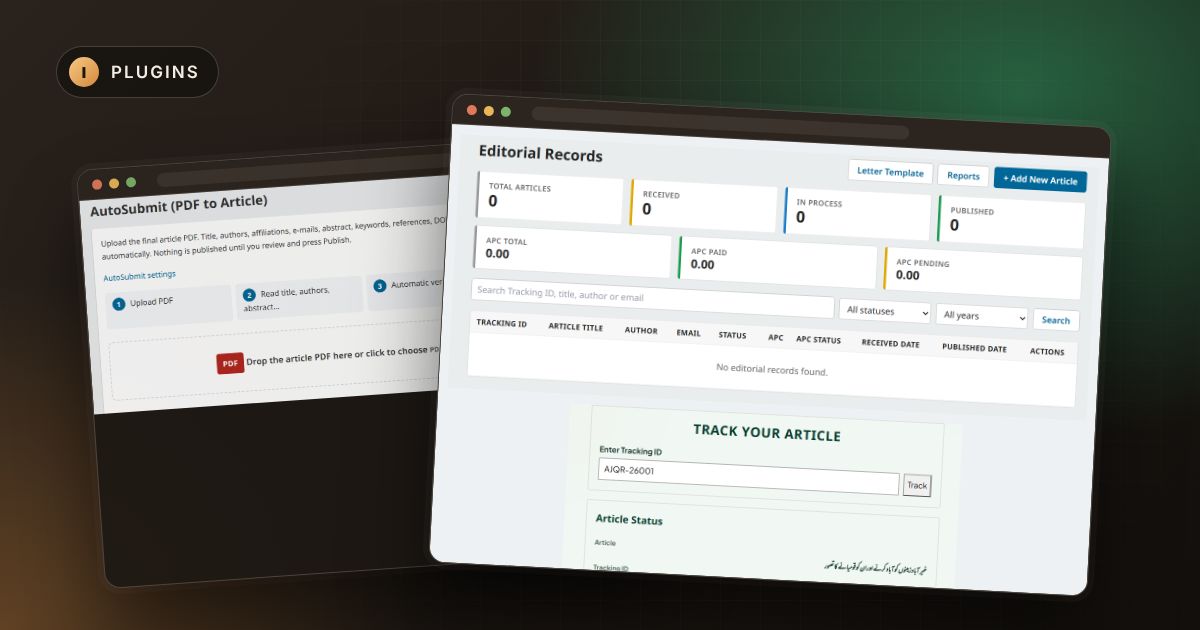
Two everyday tasks consume a surprising amount of editorial time: typing article metadata into OJS, and answering authors who want to know the status of their paper. We built two plugins for exactly these jobs:
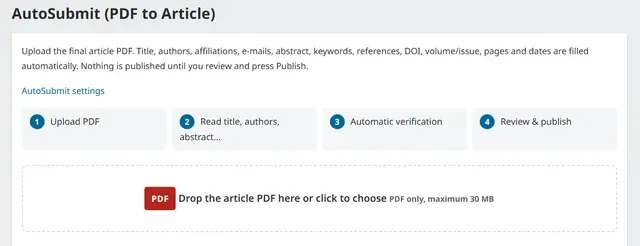
- AutoSubmit (PDF To Article) reads the final article PDF and fills in the title, authors, affiliations, abstract, keywords, references, DOI, volume/issue, pages and dates. Nothing is published until an editor reviews the record and presses Publish.
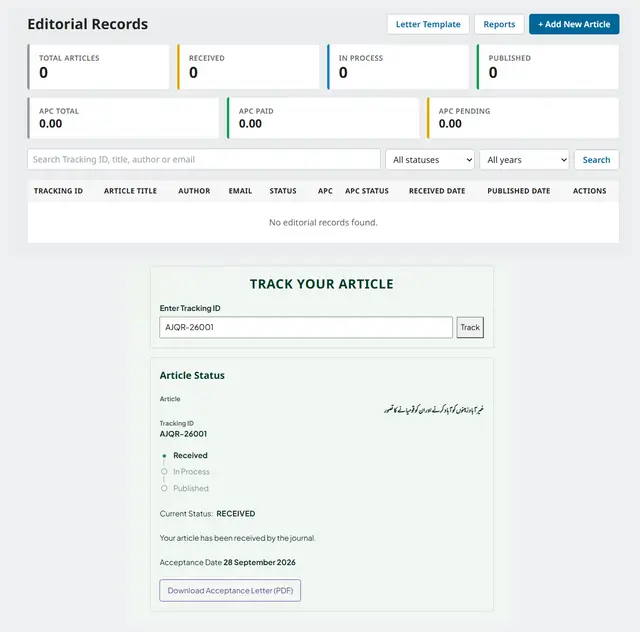
- Editorial Records & Article Tracking gives every article an automatic tracking ID that authors use to check its status online (received, in process or published) and download their acceptance letter as a PDF. Editors manage every record and APC payment from one dashboard.
How To Install Any Plugin
The process is the same as for a theme: go to Settings > Website > Plugins, click Upload A New Plugin, choose the .tar.gz file, then enable the plugin in the list. Plugins from the Plugin Gallery tab install with a single click. After installing, a Site Administrator should clear the template cache under Administration.
A word of caution: every plugin is code running on your server. Install plugins only from the PKP Plugin Gallery or developers you trust, keep them updated, and remove plugins you no longer use.
Where To Start
If you only do three things this week: confirm Google Scholar Indexing is enabled, set up DOIs, and turn on ORCID. Those three changes improve discoverability and trust more than anything else on this list. When you are ready to improve how the journal looks, browse our OJS themes.