What An OJS Theme Actually Changes (And What It Never Touches)
An OJS theme replaces how your journal looks, not how it works. Here is exactly what a theme plugin controls in Open Journal Systems, and what stays safe.
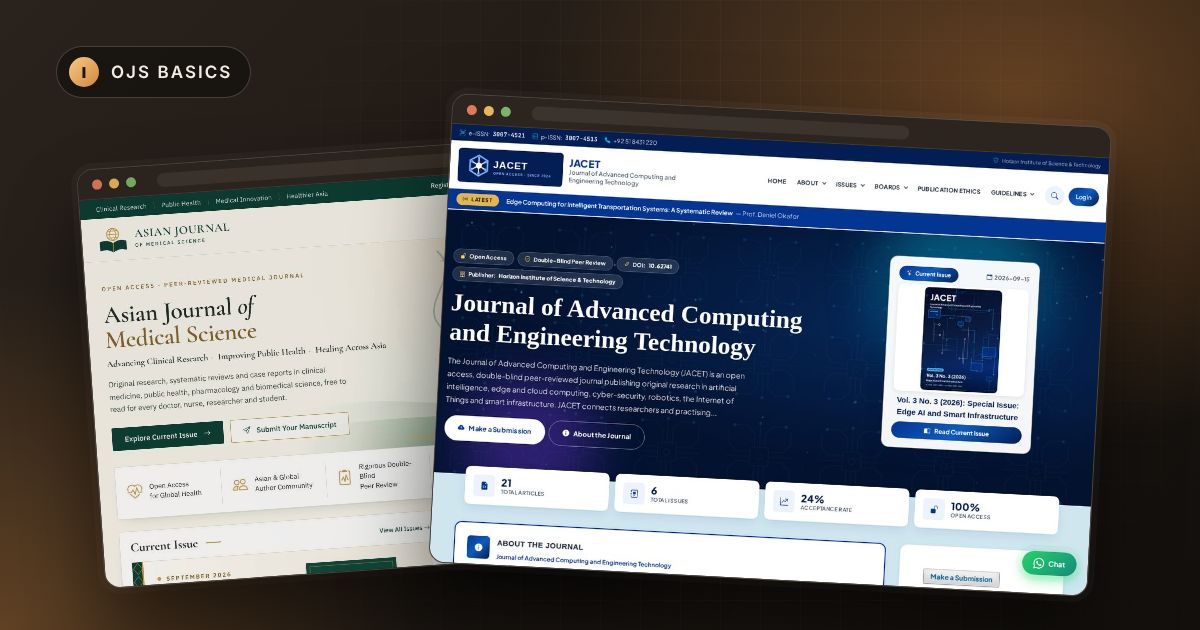
Open Journal Systems (OJS) is the publishing platform behind thousands of academic journals, but out of the box every installation looks almost the same. That is why so many editors ask the same two questions before they change anything: what will a new theme actually change, and is it safe for our submissions and archive?
The short answer is that an OJS theme changes how your journal looks, never how your journal works. This article explains where that line sits, so you can plan a redesign with confidence.
What A Theme Is In OJS
In OJS, a theme is a special kind of plugin. It ships as a folder (usually a .tar.gz file) that contains templates, stylesheets, scripts and images. When you activate it, OJS uses those files to render the public side of your journal instead of the files of the default theme.
Because a theme is a plugin, it follows the same rules as every other plugin: it is installed from the admin panel, it can be switched on or off, and it lives in its own folder (plugins/themes/) rather than inside the core code. Nothing in your database is rewritten when you switch themes.
What A Theme Changes
A theme controls the presentation layer — everything a reader sees when they visit your journal:
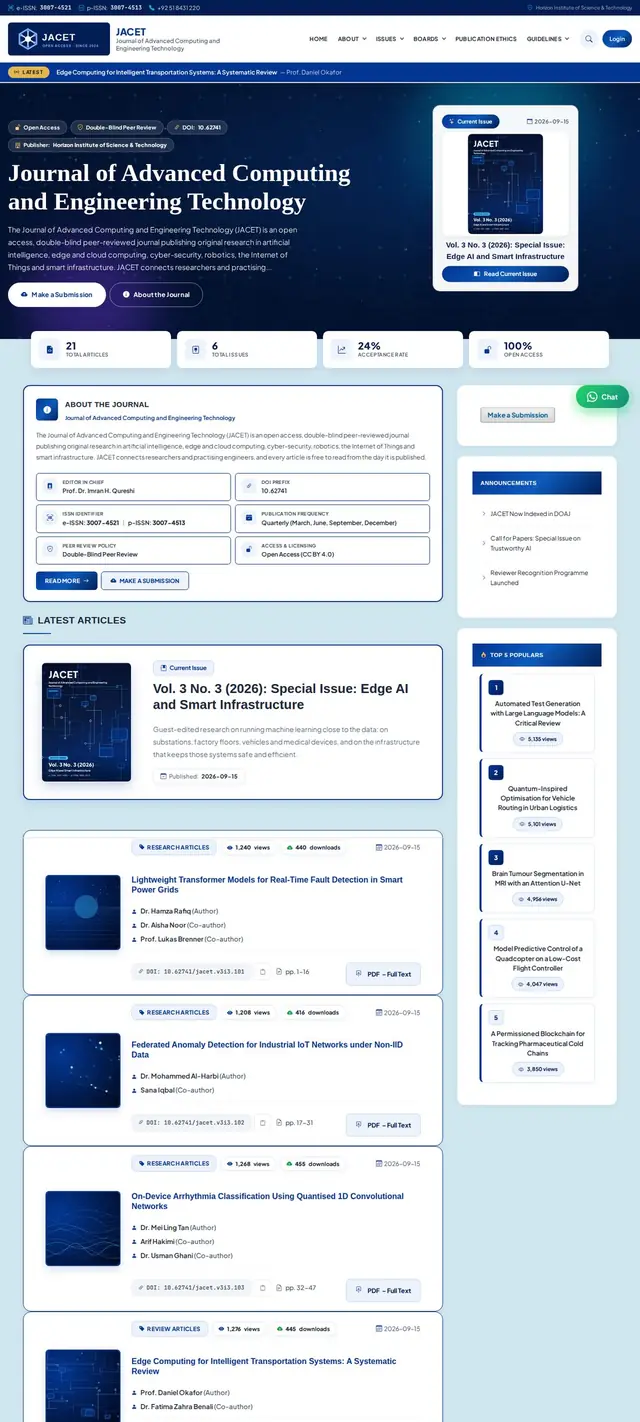
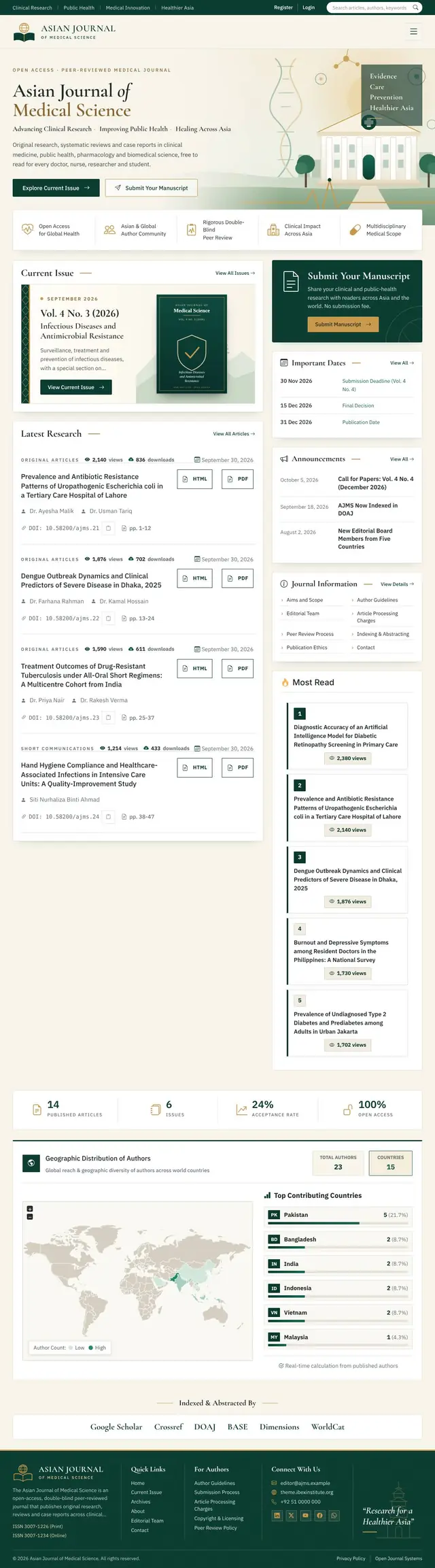
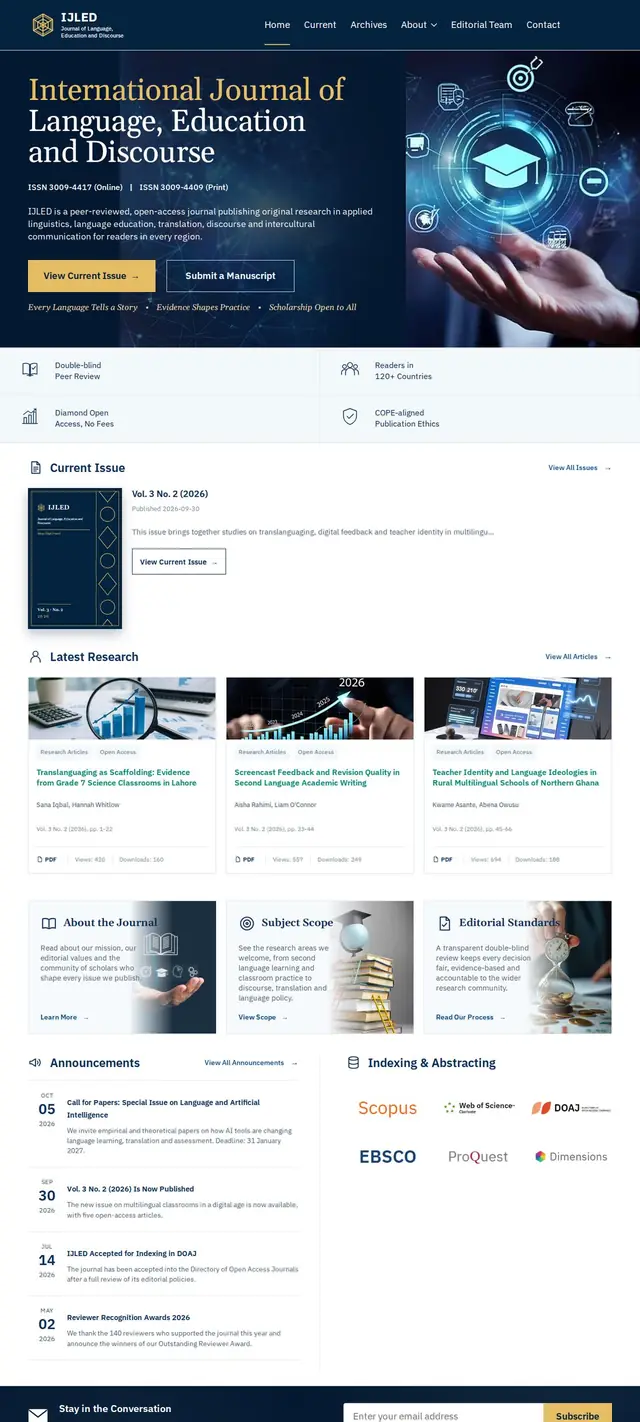
- The homepage: hero banner, current issue, announcements, journal description, indexing logos, call for papers and any statistics blocks.
- Issue and archive pages: how covers, tables of contents and section headings are laid out.
- Article pages: title area, authors and affiliations, abstract, keywords, references, "How to cite", download buttons for PDF and other galleys.
- Navigation and footer: the header menu, mobile menu, sidebar blocks and footer columns.
- Typography, colours and spacing: fonts, brand colours, button styles and responsive behaviour on phones and tablets.
- Extra page types: many professional themes add pages such as an editorial team grid, a contact page or a focus & scope page.
Most good themes also expose theme options under Settings > Website > Appearance, so an editor can change colours, header layout or homepage sections without touching code.
What A Theme Never Touches
This is the part that matters most to editors. Switching themes does not change:
- Submissions and peer review: the editorial workflow, review rounds, decisions and discussions are part of the OJS application, not the theme.
- Users and roles: authors, reviewers, editors and their permissions stay exactly as they are.
- Published content: issues, articles, galleys (PDF, HTML, XML), DOIs and metadata are stored in the database and the files directory, which a theme only reads to display.
- Settings and plugins: journal settings, email templates, DOI and Crossref configuration, ORCID, statistics and other plugins keep working.
- URLs: article and issue addresses stay the same, so existing citations and Google Scholar entries are not broken.
In practice: if you deactivate a theme, the journal simply falls back to another theme (usually the default one). Your content is still there, unchanged.
Why The Default Look Is Worth Replacing
The default OJS theme is clean and well maintained, but it was designed to be neutral. A journal homepage has a harder job than a typical company website. It needs to:
- Prove credibility to a reader who is deciding whether to cite you — ISSN, indexing, editorial board and publication ethics should be visible, not hidden.
- Guide authors who want to submit — the call for papers, author guidelines and submission button should be one click away.
- Surface the current issue and the most-read work, so returning readers see what is new.
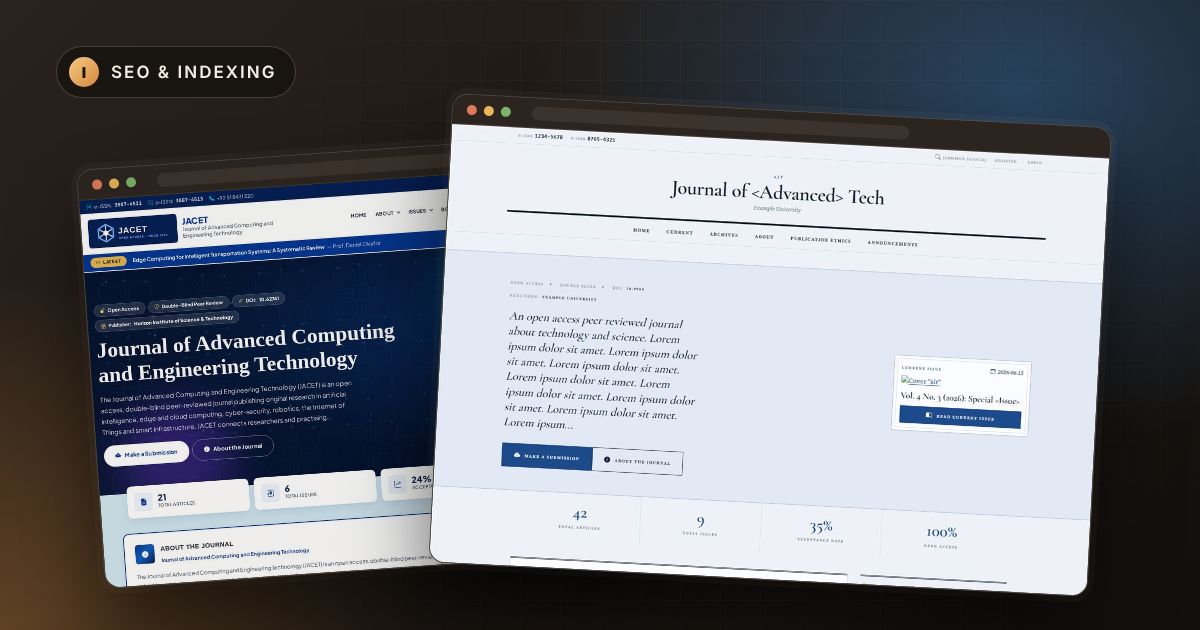
A theme designed around those three audiences gives real space to the current issue, the submission call, announcements and indexing logos, instead of squeezing them into a sidebar. Our TechnoScholar theme, for example, turns everyday OJS statistics into visible counters and charts, while Pavilion uses a calmer editorial layout for humanities and medical journals.
Accessibility, Speed And Multilingual Support
A theme also decides how accessible and how fast your journal is. When you compare themes, look for:
- WCAG 2.1 AA colour contrast and visible keyboard focus, so readers using screen readers or keyboards can navigate.
- Lightweight assets — heavy frameworks and large unoptimised images slow down article pages, especially on mobile data.
- Right-to-left (RTL) support if you publish in Urdu, Arabic or Persian, so the interface is laid out correctly rather than simply mirrored.
- Clean, semantic markup, which helps indexing services read titles, authors and abstracts properly.
Will A Theme Survive An OJS Upgrade?
A well-built theme survives upgrades because it uses the official theme API instead of editing core files. Major versions can still change template details — OJS 3.4 and 3.5, for instance, changed parts of the plugin and template structure — so a theme should state which versions it supports. Before upgrading OJS, check that your theme has a compatible release, and test the upgrade on a staging copy first.
Choosing Your Next Step
If you are planning a new look, start by listing what your readers and authors need to find in the first five seconds. Then compare a few live demos against that list. You can browse every OJS theme in our collection with a live demo, and each licence includes installation on your server, your logo and colour palette applied, and configuration of menus, blocks and the homepage.
Next, read our step-by-step guide on how to install a theme in OJS 3.4 and 3.5.